
The Vaybel Shopify integration connects one Shopify store to a Vaybel workspace and publishes your finished products to it as complete Shopify listings. You connect from the Shopify App Store or from Settings in Vaybel, link Printful or Printify so orders get made, set your prices, and publish one product to check it.1
The order of those steps matters more than the clicks. Skip the partner link and the listing can go live with no automatic fulfillment behind it.2
You probably know how a Shopify product page works. What most setup guides skip is what an app actually writes into each field, and what's still yours to do afterward. This guide covers both: the five steps, the whole listing field by field, how drops become Shopify collections, and the checks to make in Shopify after your first publish.
Key Takeaways
- Each Vaybel workspace holds one Shopify store, so a second store needs its own workspace.1
- Link a Printful or Printify store to your Shopify store before you publish, or orders won't fulfill automatically.23
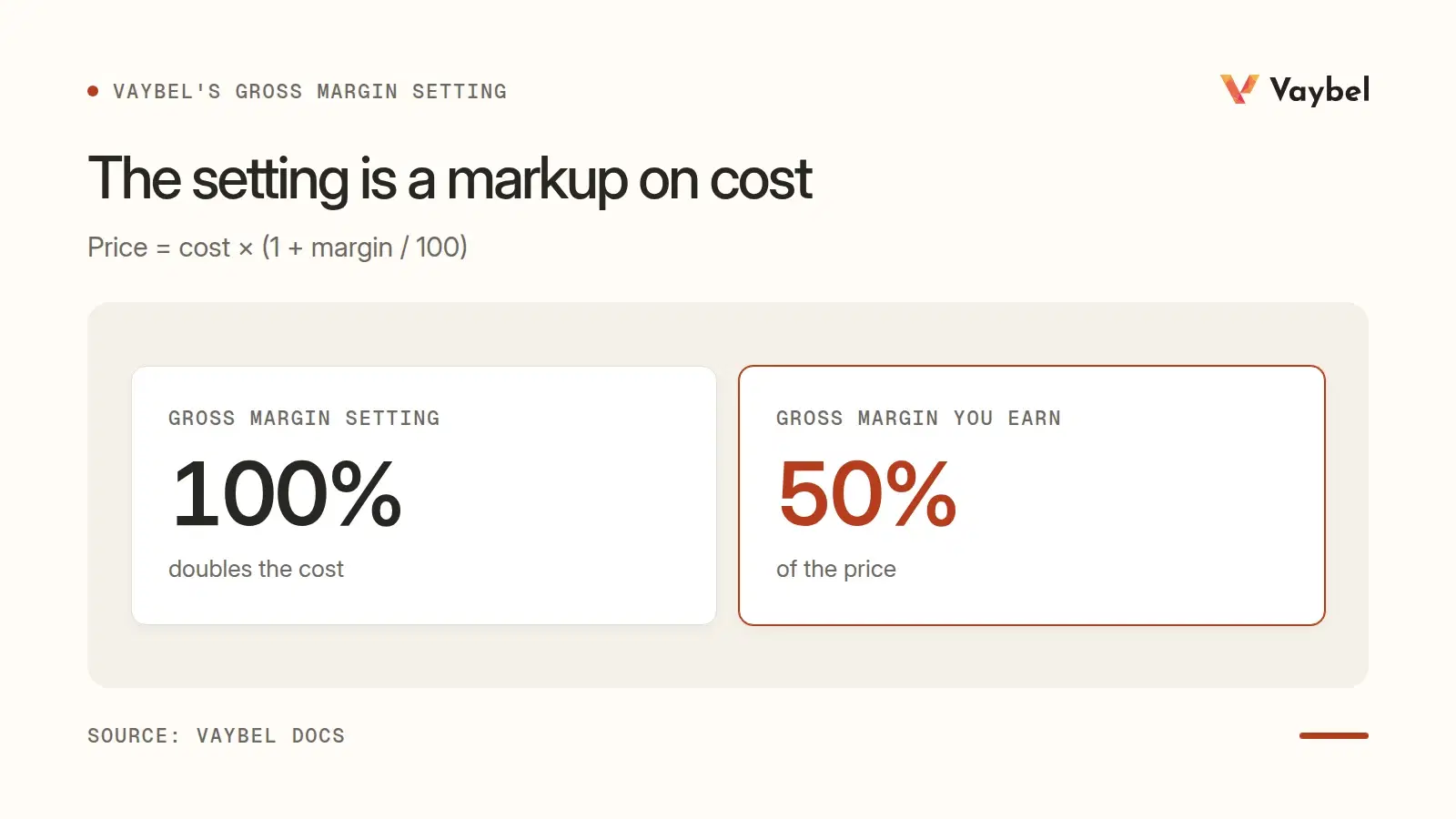
- Vaybel's Gross Margin setting works as a markup on production cost: cost × (1 + margin / 100).4
- Every listing gets Vaybel's title, HTML description, up to 15 tags and images; with Printful, Vaybel also sets the Shopify category, the size chart image and inventory.5
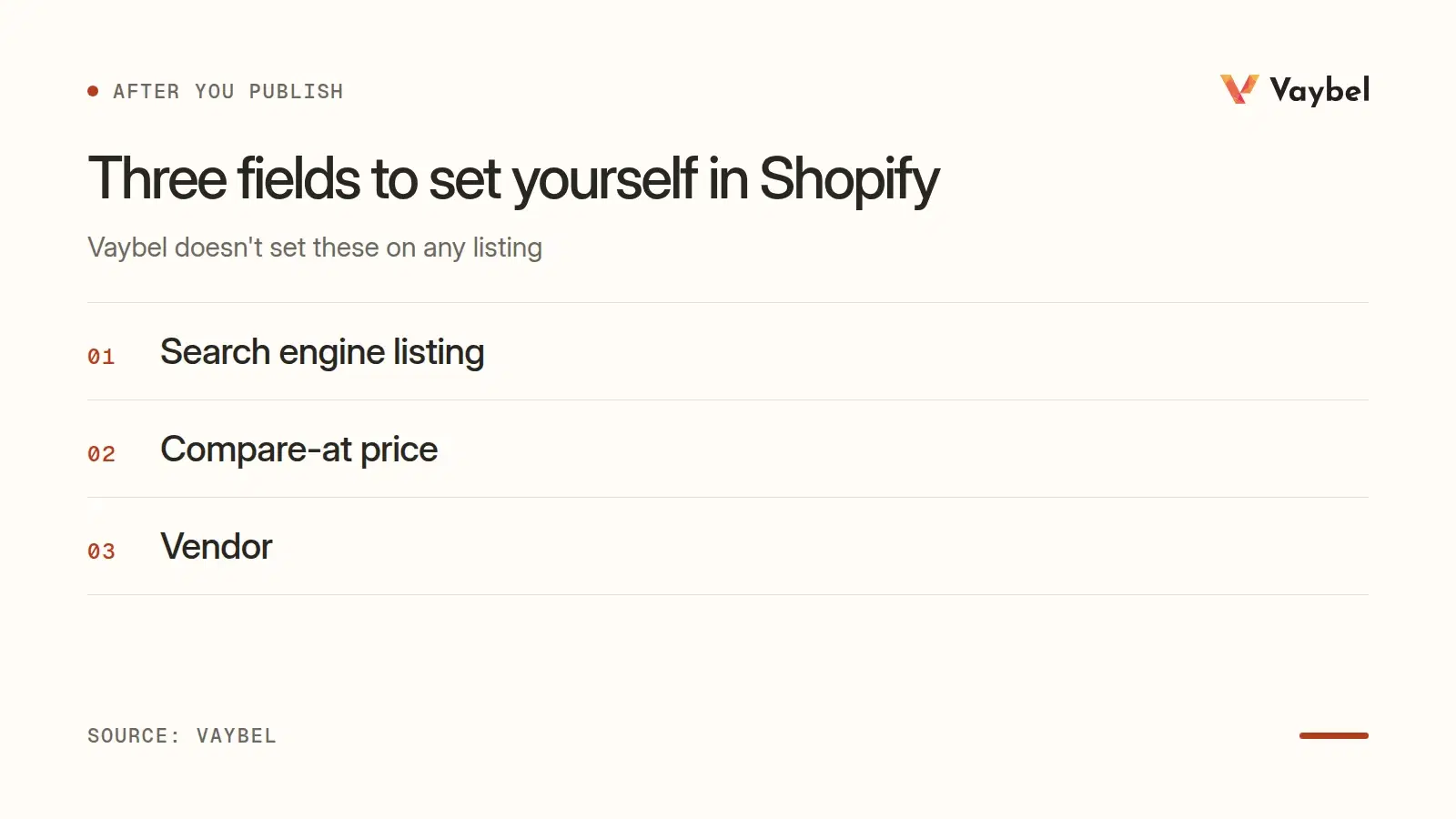
- Vaybel never fills the search engine listing or the compare-at price, so set those in Shopify.5
What the Vaybel Shopify Integration Does (and What Stays in Shopify)
Vaybel is where you prepare the product: the design, the mockups, the listing copy and the prices. The AI Listing Generator writes the Shopify listing from your design and blank. Shopify stays your brand's home. Vaybel's Shopify page draws the line this way: "Use Shopify for your storefront theme, navigation, collections, and customer experience."6
Vaybel doesn't print or ship, either. In the words of Vaybel's integrations page, "Your print provider makes and ships the clothing. Vaybel helps you prepare the product." If you make the clothing yourself, self-fulfillment replaces the print provider, and then making, packing and shipping are your job.7
The app is on the Shopify App Store as Vaybel: AI for Clothing Brands, in the print-on-demand category, launched on September 7, 2026.8
Before You Start
Have three things ready:
- A Shopify store, and a Shopify account that can install apps on it.1
- A Printful or Printify account with a store set aside for this Shopify store. Pick the store type first: Printful's can't be changed later.2
- A Vaybel plan. Starter is $19 a month with 200 credits and a 7-day trial (card required); Growth is $79 a month with 1,000 credits and no trial.9 The Shopify App Store listing also shows a Free plan with 50 credits a month.8
How you start decides who bills you. Install from the Shopify App Store and every Vaybel charge is one you approve inside Shopify, on your Shopify invoice. Sign up on vaybel.com and Vaybel bills you directly.10 Your Shopify plan, production and shipping are separate costs either way.6
Want to follow along in the product? Start the 7-day Starter trial and keep this guide open beside it.9
Step 1: Connect Your Shopify Store
There are two ways in, and both end with the store connected to your workspace.1
From the Shopify App Store. Install Vaybel and approve the access it asks for: products, inventory, locations, files and product listings. Shopify then sends you to Vaybel, where you sign in or create your account, and the store connects as part of setup.1
From the Vaybel dashboard. Open Settings, then Integrations, and click Connect on the Shopify row under Sales Channels. Enter your store domain (your-store.myshopify.com), approve the app in Shopify, and come back. The row should show Active with your store name.1
Each workspace holds one Shopify store. If you run two stores, create a second workspace for the second one. If the store is already connected to another of your workspaces, Vaybel opens that workspace instead of connecting it twice.1
Vaybel's Connect Shopify guide names the mistakes to watch for. Don't approve the app while signed in to the wrong Shopify store, and don't connect the right store from the wrong workspace. Also know that uninstalling Vaybel from your Shopify admin disconnects the store in Vaybel.1
Step 2: Connect and Link Printful or Printify
Connect your production partner in the same workspace, under Production Partners on the same Integrations page. Then check which partner store is linked to your Shopify store.2
Vaybel tries to match the partner store to your sales channel on its own, and in most cases the link is set for you. Look for the linked channel badge on the right store row before you publish. If it's wrong or missing, link that row to Shopify by hand.2
Use one partner store per sales channel. Your Shopify products shouldn't share a Printful or Printify store with your Etsy or TikTok Shop products.23
The two partners hand off in opposite order:
- Printful: Vaybel publishes the listing to Shopify first. Printful syncs it into the linked Printful store, and Vaybel attaches the print files and variant details so orders fulfill automatically. Keep Printful's "Import not synced products" setting on for that store, or new listings won't sync.2
- Printify: Vaybel publishes the product to Printify first, with the blueprint, print provider, variants and print files set. Printify then pushes the listing to Shopify.3
Still choosing between them? Our Printful vs Printify comparison for Shopify brands puts them side by side.
Step 3: Set Your Prices Before You Build
Prices come from Vaybel's catalog, not the listing screen. Open Catalog, select the blank you plan to launch, and find the Gross Margin field in the Variants card header. Vaybel previews the new price of every variant before you save.4
Read the formula before you type a number. Vaybel prices each variant at cost × (1 + margin / 100), using the variant's production cost in Vaybel's catalog. That's a markup on cost, so a 100% setting doubles the cost and gives you a 50% gross margin.4
A custom price on one variant overrides the setting. With no setting at all, Vaybel uses a default markup.4 Save it before you generate the listing, because Vaybel copies the prices into the draft at that point.5
Step 4: Build the Product
Launch Product in Vaybel is a five-step wizard: Product, Design, Mockups, Videos and Listings. Pick the blank, generate the design, then generate mockups and select at least five.11
For Shopify, flat product images are enough. Vaybel's guide says it directly: "Shopify listings can be published with product flats alone; on-model images are optional."1 Your selected mockups become the product's photos, so choose the set you'd want a shopper to see. The AI Mockup Generator makes flats, lifestyle shots and on-model images from the same design.
If the product belongs to a themed release, attach it to a drop now, before you publish. With Printful, that's what puts it in a Shopify collection later.12
Step 5: Review the Listing and Publish
Generate one listing draft for Shopify and read it before it goes anywhere. Check the title, description and images against the product and the mockups you chose. Edit weak fields rather than accepting the first version.13

Then publish one product, confirm it's live in Shopify, and only then repeat for the rest.13 Vaybel's docs also recommend ordering one sample per blank before you send traffic to a listing. Print results vary by provider, facility and garment size, and mockups are approximations.13
What Lands in Shopify: The Whole Listing
What Vaybel writes depends on your partner. With Printful, Vaybel creates the Shopify product itself and fills every row in the table below. With Printify, Printify creates the Shopify product, then Vaybel adds the images, description and tags and sets it to Active.5 On that path, the product type, category, handle, inventory and sales channels follow Printify's settings, and the size chart isn't added.
Here's each Shopify field on a Printful listing, as the product works on November 19, 2026.5
| Shopify field | What Vaybel puts there |
|---|---|
| Title | Written for Shopify search and Google Shopping: the design, the product type and one feature, aiming for 60 to 100 characters, with no pipes and no blank-maker names5 |
| Description | HTML in short sections: about the design, product details, a Made to Order note with the production time, and an AI design disclosure |
| Tags | Product-type tags such as "graphic t-shirt", general tags such as "print on demand", "made to order" and "unique gift", words from the design's name and style tags, with AI-suggested tags in any spare slots, up to 15 in all5 |
| Product type | The blank's catalog name |
| Category | The matching category from Shopify's Standard Product Taxonomy, such as T-shirts |
| URL handle | A readable slug made from the title |
| Options and variants | Size and Color (one color, or one per colorway), each variant with its own price and SKU |
| Price | Your Gross Margin setting applied to the variant's catalog cost, plus any charge for extra print placements |
| Inventory | 999 per variant at the store's first location, so made-to-order sizes don't sell out5 |
| Media | Up to 10 mockup and colorway images, with the size chart added as the last image5 |
| Image alt text | Each colorway's front flat gets alt text such as "Navy variant" and attaches to that color's variants; other images have none |
| Status | Created as a draft, then set to Active once images and inventory are in place |
| Sales channels | Made available on the store's sales channels |
| Collection | The drop's collection, when the product belongs to a drop |
| Search engine listing, compare-at price, vendor | Not set by Vaybel: check and set them in Shopify |
A few of these deserve a closer look.
Category and Tags Do Different Jobs
The category is Shopify's own classification, and it does more than sort your catalog. Shopify's help center puts it this way: "When a product is categorized correctly, the most accurate tax rate is collected at checkout."14 A category also unlocks product attributes and helps on channels like Google that want a standard product type.14
Tags are your own search words. Shopify allows up to 250 tags per product (no limit on Shopify Plus), and they help customers find products in your store's search and can build automated collections.15 Vaybel stops at 15, so add your own in Shopify if you build collections from tags.5
The Size Chart Comes Along as a Photo
On a Printful listing, Vaybel adds the blank's size chart as the last image.5 Shoppers who swipe through the photos reach it after the mockups, and you don't have to build a size table by hand. With Printify, add your size information in Shopify.
The Search Snippet Is Yours to Write
Vaybel doesn't fill Shopify's search engine listing. Open the product in Shopify, edit the search engine listing, and write a page title of 60 characters or fewer and a meta description of about 160 characters.16 It's worth five minutes for any product you plan to promote.
Ready to see it with your own design? See how Vaybel works with Shopify, or install it from the Shopify App Store.
Group a Drop into a Shopify Collection
When you publish a product attached to a drop, Vaybel adds it to a Shopify collection with the drop's name. It reuses a collection that matches or creates a new one.12 This works for products Printful makes; if Printify makes the product, add it to the collection yourself in Shopify.5
The grouping runs after the publish. A product can be live before it shows up in the collection, and a grouping error doesn't undo the publish.12 To check, open the drop and look under On your channels for Shopify collection: Ready means it worked, and Failed means it needs a look.12
Vaybel doesn't touch your navigation, so set the collection's visibility and menu placement in Shopify. Some changes also don't flow between the two:12
- Adding a product that's already live to a drop doesn't move it into the collection right away.
- Renaming a drop doesn't rename its Shopify collection.
- Wrapping or deleting a drop doesn't remove the collection or unpublish products.
- Changes you make to the collection in Shopify don't come back to the drop.
Vaybel's drop planning guide has the full publishing sequence.
After You Publish: Five Checks in Shopify
Vaybel's Shopify page gives the same advice in its steps: review the published product in Shopify.6 On your first product, look at five things.
- Status and sales channels. The product should be Active and available on your Online Store. If a channel is missing, add it from the product's page in Shopify.
- Variants and prices. Every size and color you launched should be there, at the prices your Gross Margin setting gave.
- Photos. Check the mockups are in the order you want and each color shows its own photo when a shopper picks it. On a Printful listing, the size chart sits last.
- The partner side. In Printful or Printify, open the synced product and check its variants, placements and print files before orders arrive.2
- Your phone. Open the live product page on your phone, the way most shoppers will, before you promote it.6
Edit freely in Shopify after that; it's a regular Shopify product. If Printful makes it, leave the SKUs as they are: Vaybel reads them to match each variant in Printful.5
FAQ: The Vaybel Shopify Integration
Can I connect more than one Shopify store to Vaybel?
Not to one workspace. Each workspace holds one Shopify store, so a second store needs its own workspace.1
Do I need Printful or Printify to publish to Shopify?
For automatic fulfillment, yes: connect one and link it to your Shopify store. If you make the clothing yourself, use self-fulfillment instead, and handle making, packing and shipping yourself.7
Does Vaybel bill me through Shopify?
If you installed Vaybel from the Shopify App Store, yes. Vaybel never asks you for a card, and each charge appears on your Shopify invoice. If you signed up on vaybel.com, Vaybel bills you directly.10
Do I need on-model photos for a Shopify listing?
No. Shopify listings can be published with flat product images alone, and on-model images are optional.1
What happens if I uninstall the Vaybel app from Shopify?
Uninstalling Vaybel from your Shopify admin disconnects the store in Vaybel.1 Reconnect it from Settings, then Integrations, in the same workspace.
Start With One Product
The Vaybel Shopify integration does one job well: it turns a finished design into a complete Shopify product, priced and linked to the partner who'll make it. Connect the store, link the partner, set the margin, build the product, publish one, and check it in Shopify.
After that, Shopify is where your brand grows. For the bigger picture, from launch budget to finding buyers, read our guide to starting a clothing brand on Shopify.
Start your 7-day Starter trial and publish your first product →9
Sources
Footnotes
-
Vaybel Docs, "Connect Shopify," updated September 9, 2026, https://vaybel.com/docs/sales-channels/connect-shopify ↩ ↩2 ↩3 ↩4 ↩5 ↩6 ↩7 ↩8 ↩9 ↩10 ↩11 ↩12
-
Vaybel Docs, "Connect Printful," https://vaybel.com/docs/production-partners/connect-printful ↩ ↩2 ↩3 ↩4 ↩5 ↩6 ↩7 ↩8
-
Vaybel Docs, "Connect Printify," https://vaybel.com/docs/production-partners/connect-printify ↩ ↩2 ↩3
-
Vaybel Docs, "Set Your Gross Margin," https://vaybel.com/docs/getting-started/set-gross-margin ↩ ↩2 ↩3 ↩4
-
Vaybel product team, Shopify listing generation and publishing behavior as of November 19, 2026. ↩ ↩2 ↩3 ↩4 ↩5 ↩6 ↩7 ↩8 ↩9 ↩10 ↩11 ↩12 ↩13
-
Vaybel, "Shopify print-on-demand designs and listings," https://vaybel.com/solutions/shopify-pod ↩ ↩2 ↩3 ↩4
-
Vaybel, "Integrations: Shopify, Etsy, TikTok Shop, Printful, Printify," https://vaybel.com/integrations ↩ ↩2
-
Shopify App Store, "Vaybel: AI for Clothing Brands," read November 19, 2026, https://apps.shopify.com/vaybel ↩ ↩2
-
Vaybel, "Pricing," read November 19, 2026, https://vaybel.com/pricing ↩ ↩2 ↩3
-
Vaybel Docs, "Billing & Third-Party Costs," updated September 9, 2026, https://vaybel.com/docs/getting-started/billing ↩ ↩2
-
Vaybel Docs, "Launch Your First Product," https://vaybel.com/docs/getting-started/launch-your-first-product ↩
-
Vaybel Docs, "Plan a Drop and Group Your Listings," https://vaybel.com/docs/launch-workflow/plan-a-drop ↩ ↩2 ↩3 ↩4 ↩5
-
Vaybel Docs, "Create and Publish Listings," https://vaybel.com/docs/launch-workflow/create-and-publish-listings ↩ ↩2 ↩3
-
Shopify Help Center, "Shopify's Standard Product Taxonomy," https://help.shopify.com/en/manual/products/details/product-category ↩ ↩2
-
Shopify Help Center, "Adding and updating products," https://help.shopify.com/en/manual/products/add-update-products ↩
-
Shopify Help Center, "Adding keywords for SEO to your Shopify store," https://help.shopify.com/en/manual/promoting-marketing/seo/adding-keywords ↩