Goal
Add Printful as an active Production Partner in the workspace that owns the sales channel, then make sure Printful is ready to sync and fulfill the same listings.
Need a Printful account first? Create it, then come back here:
Pick The Right Printful Store First
Before you connect Printful in Vaybel, decide which Printful store belongs to which sales channel.
- use one Printful store per sales channel
- if you plan to sell on Etsy, create or use the Etsy Printful store
- if you plan to sell on TikTok Shop, create or use the TikTok Shop Printful store
- if you sell on more than one channel, keep those stores separate
Important precondition
When you create a Printful store, choose the correct store type for that sales channel. You cannot change the store type later, so this is the first thing to get right.
Connect Printful In Vaybel
Open:
- Dashboard -> Settings -> Integrations
- or the first-time setup flow, if you have not finished connecting the workspace yet
Then choose Printful under Production Partners.
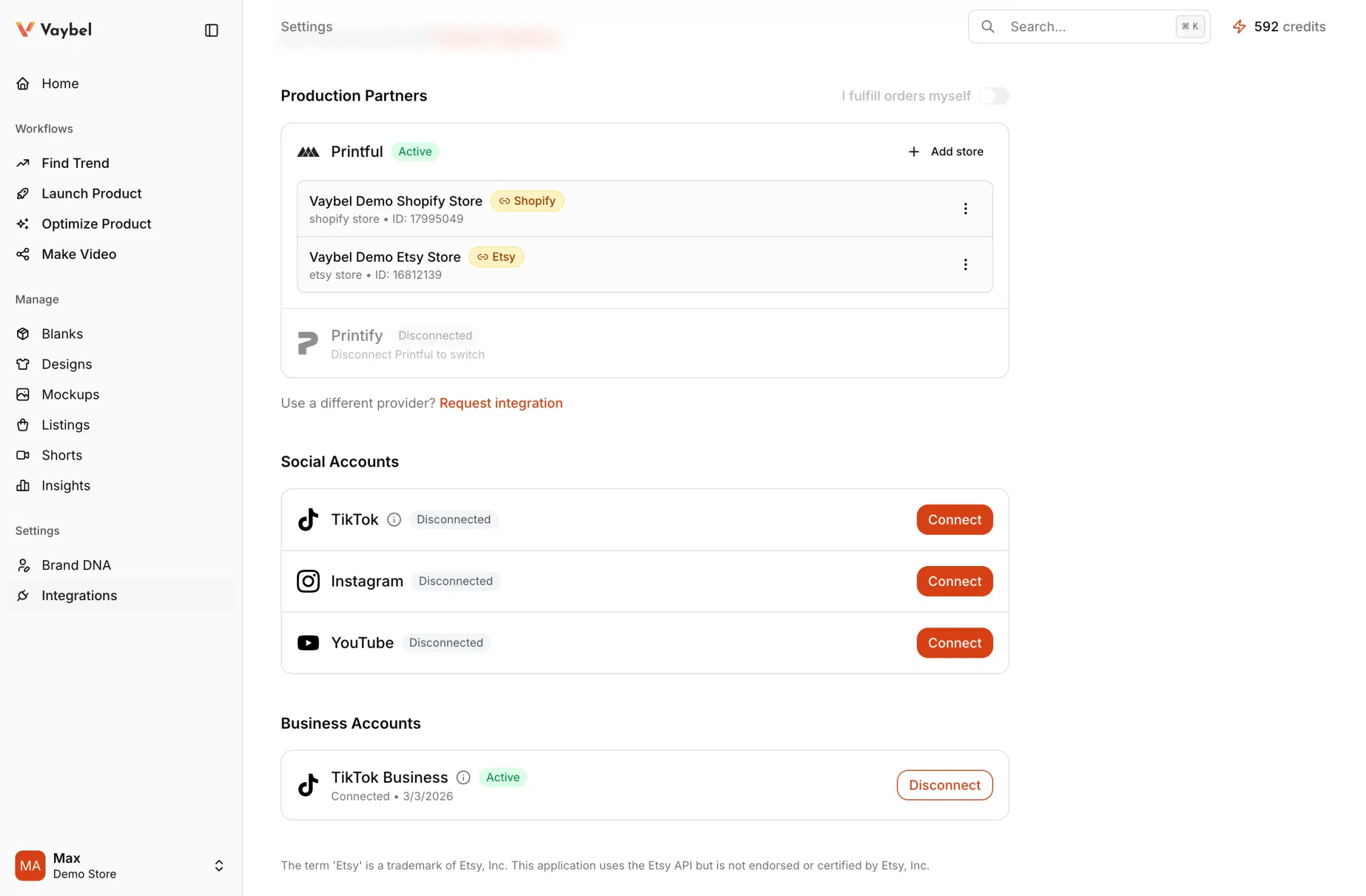
Link The Printful Store To The Sales Channel
After you connect Printful, Vaybel automatically tries to match the Printful store to the active sales channel based on store metadata. In most cases the link is set up for you.
Verify the linked channel badge appears on the correct Printful store. If the auto-link is wrong or missing, fix it manually:
- Open
Dashboard -> Settings -> Integrations. - Find the Printful store row you intend to use.
- Link that store row to the matching sales channel.
- Confirm the linked channel badge appears before you publish.
Turn On Printful Product Sync
After Printful is connected, open the same Printful store in Printful and turn on product sync:
- Open
Dashboard -> Storesin Printful, or go toMy products -> Published. - Select the same Printful store you linked to this sales channel.
- Turn on
Import not synced products from [your platform].
This imports product listings from the connected sales channel into that Printful store, including listings that may currently be self-fulfilled or handled by another provider.
Keep this toggle enabled so new listings published from Vaybel are automatically synced into Printful.
Use Printful's own guide for the latest wording and store-screen details:
How The Flow Works
Vaybel publishes the listing to the sales channel first. Printful then syncs that listing into the linked Printful store. After sync, Vaybel sets the correct catalog product and variant IDs and uploads print files to Printful so orders can be fulfilled automatically.
If the Printful store is not linked to the correct sales channel or product sync is off, this chain breaks and orders will not fulfill automatically.
Review The Synced Product In Printful
Before you trust automatic fulfillment, open the synced product in Printful and review the product, variants, placements, and print files. This is the best way to catch accuracy problems before orders start coming in.
Watch For
- creating the wrong Printful store type — it cannot be changed later
- reusing one Printful store across multiple sales channels
- connecting Printful in a different workspace than the channel
- linking the wrong store when the account has more than one