What This Step Does
Still choosing the garment? Use Blank finder for help from Brand Assistant or browse the public Blank library. Choose a blank explains how to compare the evidence and continue here.
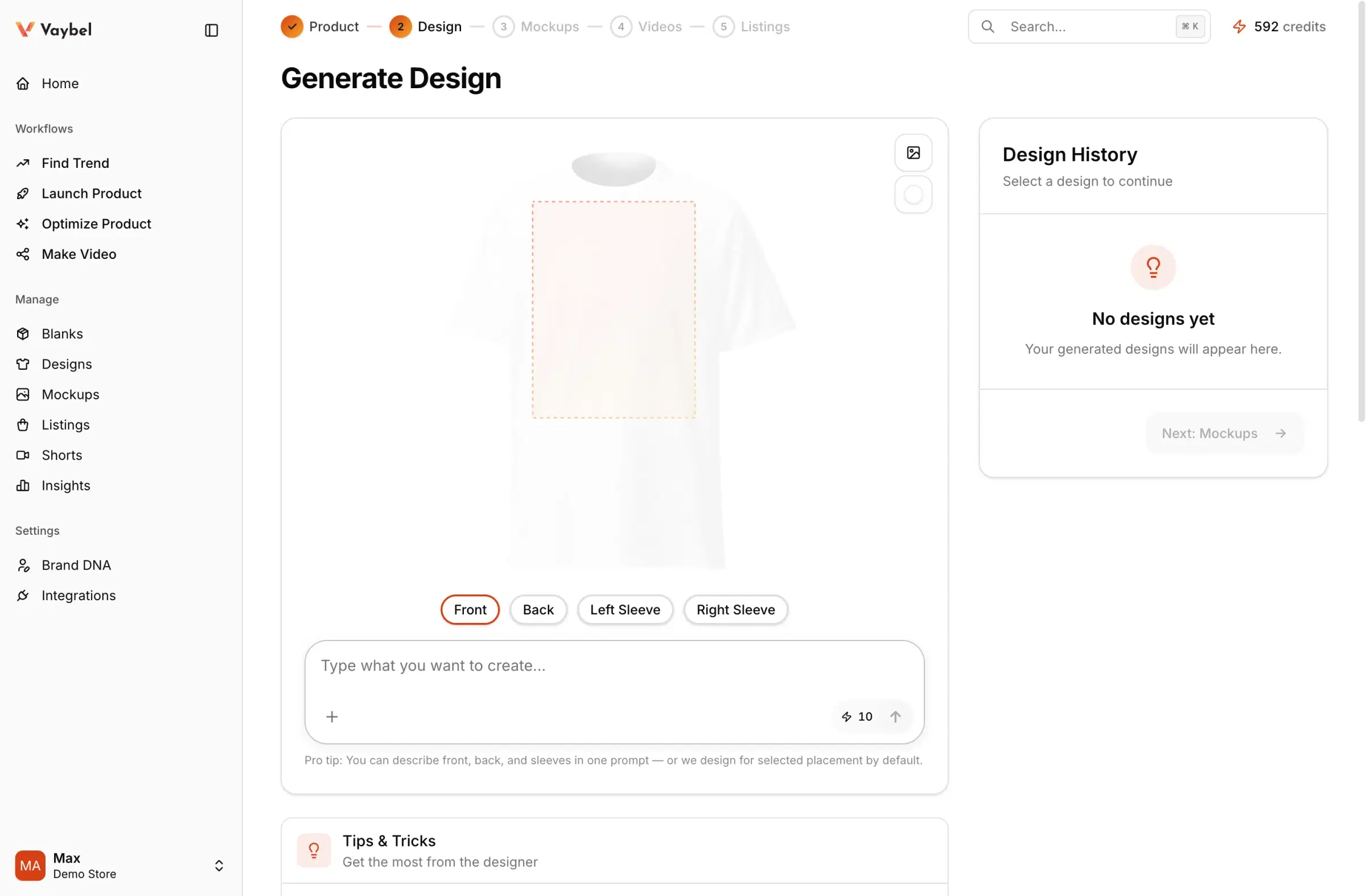
This is the live design step inside Launch Product. It is where you:
- write the design prompt
- choose placements
- attach a logo or image
- generate, edit, regenerate, or go back
- add colorways for additional garment colors
- review the result in available preview modes
If you have not set up Brand DNA yet, do that first. The design step works without it, but Brand DNA usually makes the first result more usable.
Where To Start
Open Launch Product from the dashboard sidebar, then select the blank product you want to work on.
DTG Versus All-Over Print
DTG
For DTG products, think in defined print areas: front, back, sleeves. DTG works best when the prompt is explicit about what should appear on each placement.
All-Over Print
For all-over print, think about the entire garment surface. That usually works best with seamless patterns, gradients, repeated motifs, or a hero graphic with supporting background treatment.
Placements
Placements are the named print areas for the current product (Front, Back, Left Sleeve, Right Sleeve).
- If you want different artwork in different places, say so clearly.
- If you want one idea across multiple placements, describe all of them in one prompt.
Logo and Uploaded Images
The + menu in the prompt supports two asset paths:
Use Logo— reuse the logo stored in Brand DNAUpload Image— attach a one-off image or graphic
The prompt should mention the attached asset explicitly, for example: "place my uploaded logo centered on front" or "use my uploaded graphic on the back and keep the front minimal."
Generate, Edit, Regenerate, Back
Generatecreates a design from scratchEditrefines the current designRegeneratekeeps the direction but gives you a fresh variationBackreturns to the previous design state
If the direction is wrong, change the prompt. If the direction is right but the execution is weak, edit or regenerate.
Colorways
Colorways let you add additional garment colors to the same design without creating separate products. This is available for DTG and embroidery products.
After generating the initial design on one garment color, use the color strip on the right side of the preview to add more colors. Vaybel renders the same artwork on each new garment color automatically.
How it works:
- The first color is the master design.
- Each additional color becomes a colorway — a child design that shares the same artwork.
- You can add up to five colorways per product.
- At listing time, all colorways become color variants within a single listing. One listing, multiple colors, all size variants per color.
If a colorway needs different artwork (for example, inverting a dark design for a light garment), you can customize it independently so it no longer shares the master's placements.
Add every color you want before publishing — the listing takes the colors that exist on the design at publish time. See Add more garment colors for the full walkthrough.
Preview Modes
The preview menu can show:
Mockup Preview— the fastest check for how the design reads on product imagery3D Model— useful when the product has a model-based preview2D Pattern— especially relevant for all-over print when surface coverage matters
Not every product supports every preview mode.
Create Within a Drop
To keep a release together, open the drop and choose New Design. Select your blank and continue through the existing design, mockup, and listing steps. The new design stays attached to that drop.
The drop brief adds release direction to fresh graphic and all-over designs alongside Brand DNA. Explicit prompt instructions and uploaded artwork take priority; the brief does not rewrite an existing design when you edit the brief. Check the generated artwork before making mockups. See Plan a drop.
Next Read
Get help choosing the blank
On Launch Product, browse the product cards directly or choose Choose with Brand Assistant. The Assistant can use your Brand DNA and your preferences to compare the garment's fit, fabric, weight, colors, sizes and documented tradeoffs. Its research is cited; missing evidence stays explicit. The Assistant option appears when it is available in your workspace.
Review the recommendation, then select Choose blank to continue in the existing Design step. If you developed an artwork prompt in chat, that prompt can be prefilled for you to edit. You still review the form and choose Generate yourself. Blank selection alone does not generate artwork.
For a manual comparison, use the Blank library to select two to four blanks. For external agents, see the blank research API and MCP tools.