What Brand DNA Does
Brand DNA is the store-level context Vaybel uses across design generation, listing creation, and mockup rendering.
When you describe your brand, Vaybel runs AI research using your description and any data from connected accounts (Etsy shop metadata, TikTok Shop store name) to draft a complete brand profile. You can review and change any part of it at any time.
Best For
New users who want better design results before they start launching products.
Primary Outcome
Your store has a usable creative baseline that feeds into designs, listings, and mockups.
How It Works
- You enter a short description of your brand (what you sell, who it is for, the style you want).
- Vaybel pulls metadata from any connected accounts (Etsy shop details, TikTok Shop store name) to add context.
- AI researches and drafts your full Brand DNA: niches, audiences, colors, typography, tone, product types, and a brand description.
- Everything is editable. Review the output and adjust anything that does not match your vision.
Where To Set It
Open Workspace → Brand DNA from the dashboard menu.
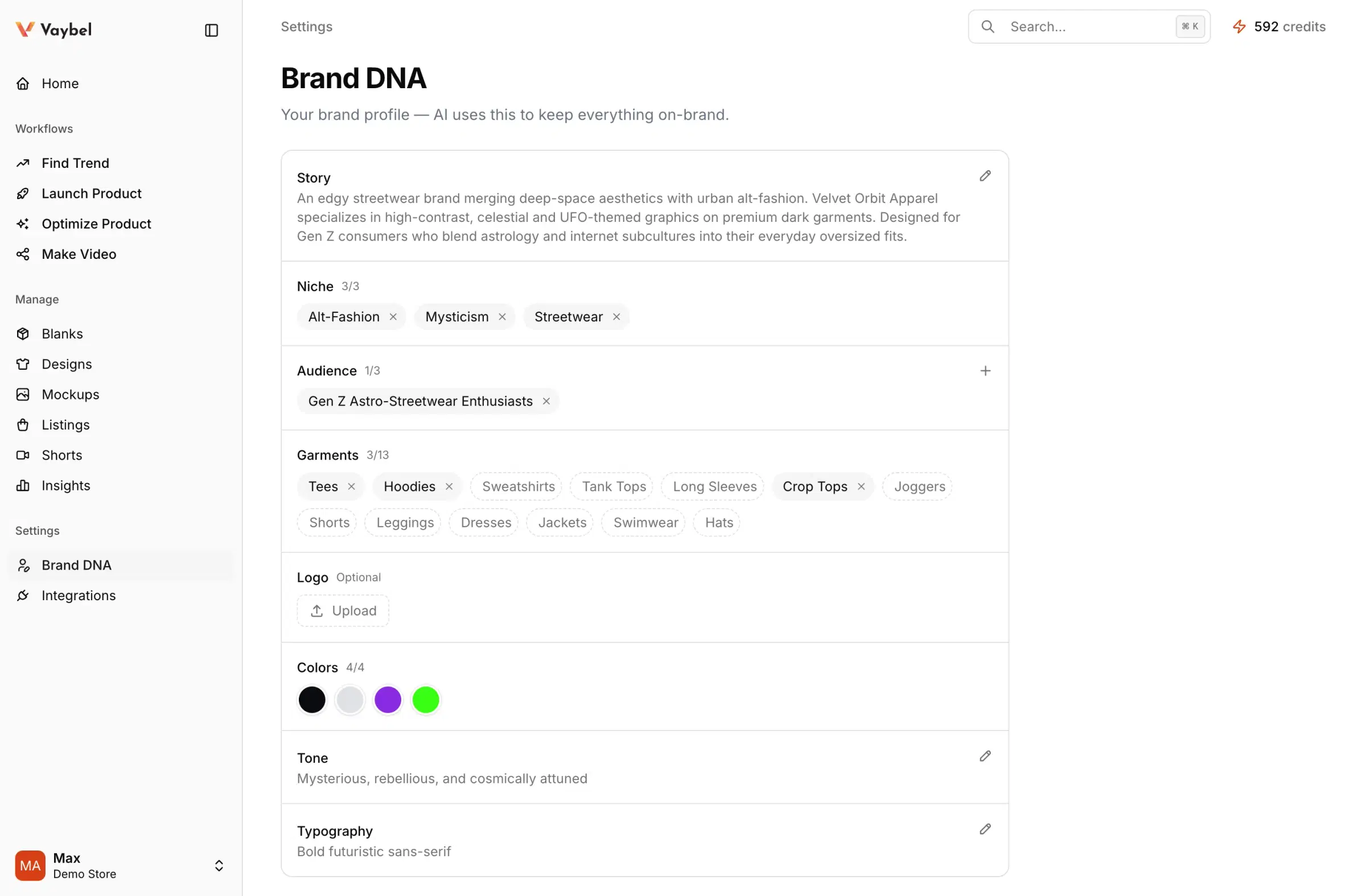
What Each Section Does
Brand Story
The free-text description you provide. This is the primary input Vaybel uses to research and generate everything else.
Niche
The market segments your brand operates in. Vaybel generates 2-4 niches based on your description. These influence design style and are used when generating virtual models for mockups.
Audience
The people your brand targets. Each audience includes an age range, gender options, ethnicity options, and a short psychographic description.
Audience data is especially important because Vaybel uses it to generate virtual models for VTO (virtual try-on) mockups. The age, gender, ethnicity, and style personality of each audience directly shape how virtual models look and dress in your product mockups.
Colors, Typography, and Tone
These visual and voice settings feed into the design generation pipeline. When you create a design, Vaybel uses these as creative direction alongside your prompt.
Logo
Upload your logo if the brand uses one in designs. Vaybel stores a description of the logo and makes it available during design generation.
This logo also identifies your organization in the sidebar and organization switcher. Uploading or removing it updates those images immediately. If no logo is available, Vaybel shows the organization's initial. Your personal photo is managed separately under Account → Profile and belongs to your user account.
Product Types
The types of products your brand sells. These come from the Vaybel catalog and help scope what the AI suggests.
Brand DNA, Drops, and Photography
Use Brand DNA for the identity you want to carry across releases: audience, style, colors, and voice. Use a drop for one release's brief and related work. Use Virtual models and Environments for the people and settings in product photography. They are separate choices: a saved environment does not change your artwork, and changing Brand DNA does not regenerate existing products or photos.
Brand Photography
The Brand DNA page opens on the Brand DNA tab, where your core brand profile stays first. Use the Virtual models tab to inspect your people, and Environments to choose lifestyle settings.
Environments includes Warm café, Minimal concrete, Window-lit loft, Neutral stone, Quiet storefront, and Blue studio. Use a setting for new lifestyle photo plans, or choose Preview to prepare a review card. Generating the two-image preview costs 2 credits and shows both a person in the scene and coordinated flat staging.
For a custom combination, choose Create with Brand Assistant and describe your preferred setting, light, palette, and surface. The Assistant prepares a card for review. It cannot submit an arbitrary background image or override camera angles, pose, framing, depth requirements, or garment visibility. Custom scenes become active only after you generate and adopt the preview.
Virtual models shows each audience model and its available product-specific front, 45° side, and back views. Open an image to inspect it at full size. Use Create alternative for a new person, or Refine with Assistant for a hair change that preserves the person's identity. A model preview costs 1 credit. Review the result and choose Use this for future generations to adopt it. You can restore the previous model after the latest adoption.
An environment preview demonstrates the setting and flat staging. Its person and garment are examples; it is not a finished mockup of your selected model wearing your design. Create the product's mockups in Launch Product → Mockups to review that combination.
The sequence is propose → generate preview → review → adopt. Generating a preview does not select it automatically. For built-in environments, Use setting selects the preset directly; Preview… is an optional paid check, with the cost shown before generation. Choose Reset to automatic to stop using your selected environment.
Drafting a card spends no image credits. A failed preview returns its credits. If a preview fails, review its error; if it is still queued or running, Resume preview · no extra credits resumes the same request. Existing product photos and already planned jobs keep their current assets; new generations use the adopted model revision and selected environment. The studio reference always retains Vaybel's controlled framing and background.
Regenerate Brand DNA
Use Regenerate Brand DNA when the current profile is generic, weak, or off-brand. Enter a new or updated description and Vaybel will re-run the full AI research and overwrite all Brand DNA fields with fresh output.
Do not keep regenerating until something good appears. Instead, tighten the description first, regenerate once, and edit the result directly.
How It Helps Downstream
- Design generation: colors, typography, tone, and logo description feed into the Creative Director prompt that guides AI design output.
- VTO mockups: audience profiles (age, gender, ethnicity, style) drive virtual model generation so mockups feature people that match your target customer.
- Listings: brand description and tone inform AI-generated listing copy.