What You See When You Open Optimize
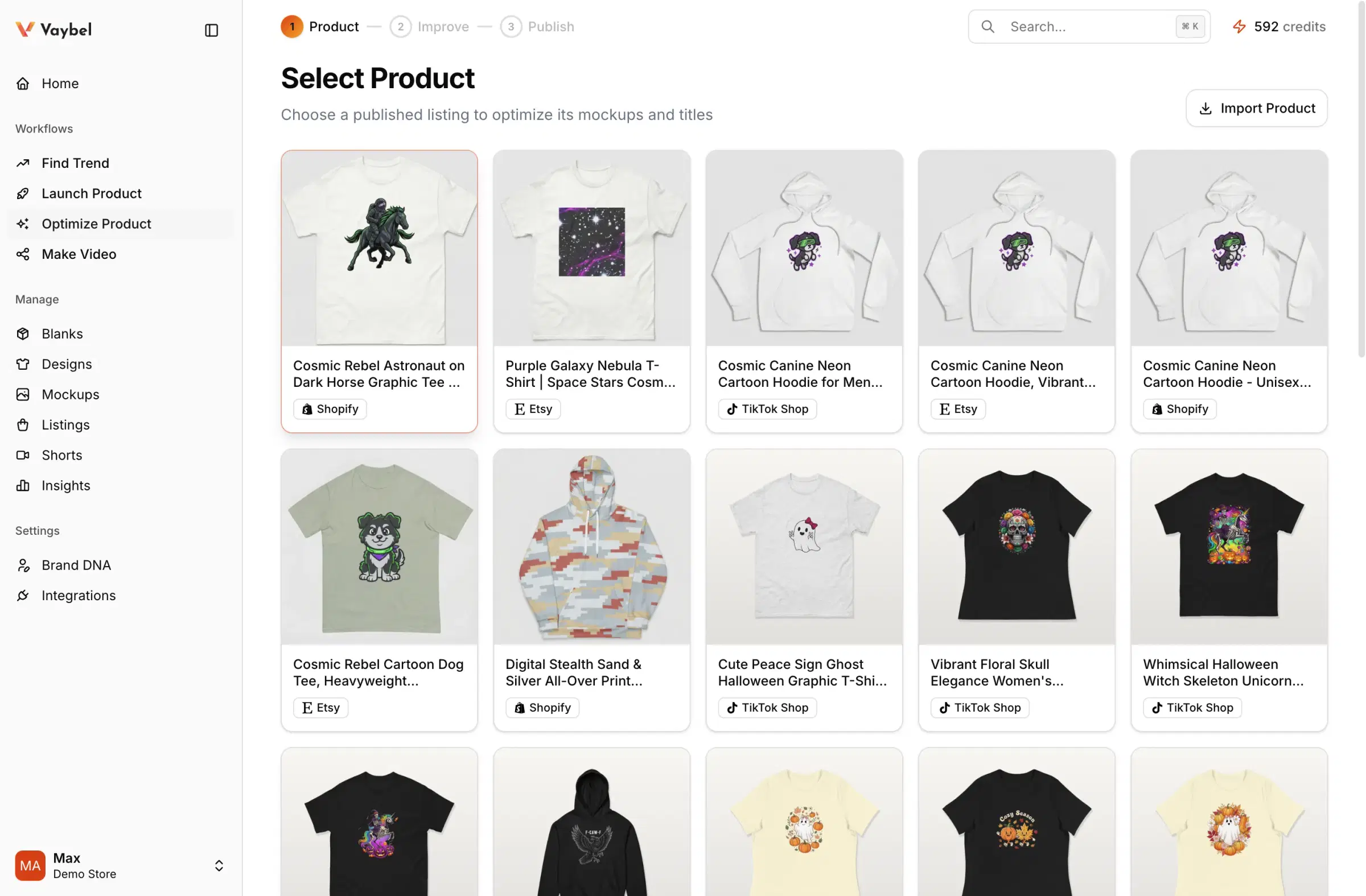
When you open Optimize Product from the sidebar, the first step shows all listings currently managed through Vaybel. These can be products you created through the Launch workflow, or products you imported from a Production Partner.
Each card shows the product name and the sales channel it is published to (Etsy, TikTok Shop, Shopify). Select any product to improve its listing.
Importing a New Product
To bring in a product that is not yet in Vaybel, click Import Product in the top right corner. This pulls products from the Production Partner store that is linked to your active sales channel.
Before You Import
- you are in the right workspace
- a sales channel is connected and linked to the correct Production Partner store
- the product is already published or live on that sales channel
Import Pattern
- Click
Import Product. - Select the product you want to import.
- Vaybel imports the product and tries to find and connect the matching live listing on the sales channel.
- If the listing is found, the product appears in the grid and is ready to improve.
If The Listing Was Not Found
Sometimes the import succeeds but Vaybel does not find the live listing on the first attempt. This can happen when the listing was created or updated outside Vaybel, or when a channel connection was recently reconnected.
Use the listing refresh action on the imported product to re-scan for matching sales channel data. If the listing still does not appear, confirm the product is actually live on the channel and that the channel-to-Production-Partner linking is correct.