Goal
Give Vaybel permission to publish the content you make to your Instagram account and read back how it performs. The connection runs through Meta's own login flow, and it only takes a few minutes once your Instagram account is set up the way Meta expects.
Before You Start
Meta's connection flow has two requirements that trip up almost everyone. Check both before you click Connect:
- An Instagram professional account. Business or Creator both work. Personal accounts can't be connected. Switch in the Instagram app under
Settings -> Account type and tools -> Switch to professional account. - A Facebook Page, linked to that Instagram account. Meta's Instagram API works through a Facebook Page, even if you never post to Facebook. Vaybel does not post to your Page. If you don't have one, Meta's dialog can create a Page for you during the connection, but the link between the Page and your Instagram account is still something you set yourself (see below).
You also need to be logged into Facebook as the personal profile that administers the Page. Meta may ask you to confirm with two-factor authentication.
Selling on Instagram is optional
You do not need an Instagram Shop, a product catalog, or a Meta commerce account to connect. Those only matter if you want Vaybel to tag products in your posts so followers can tap to shop. You can connect today for publishing and insights, and add the shop later without losing anything.
Link your Instagram account to your Page
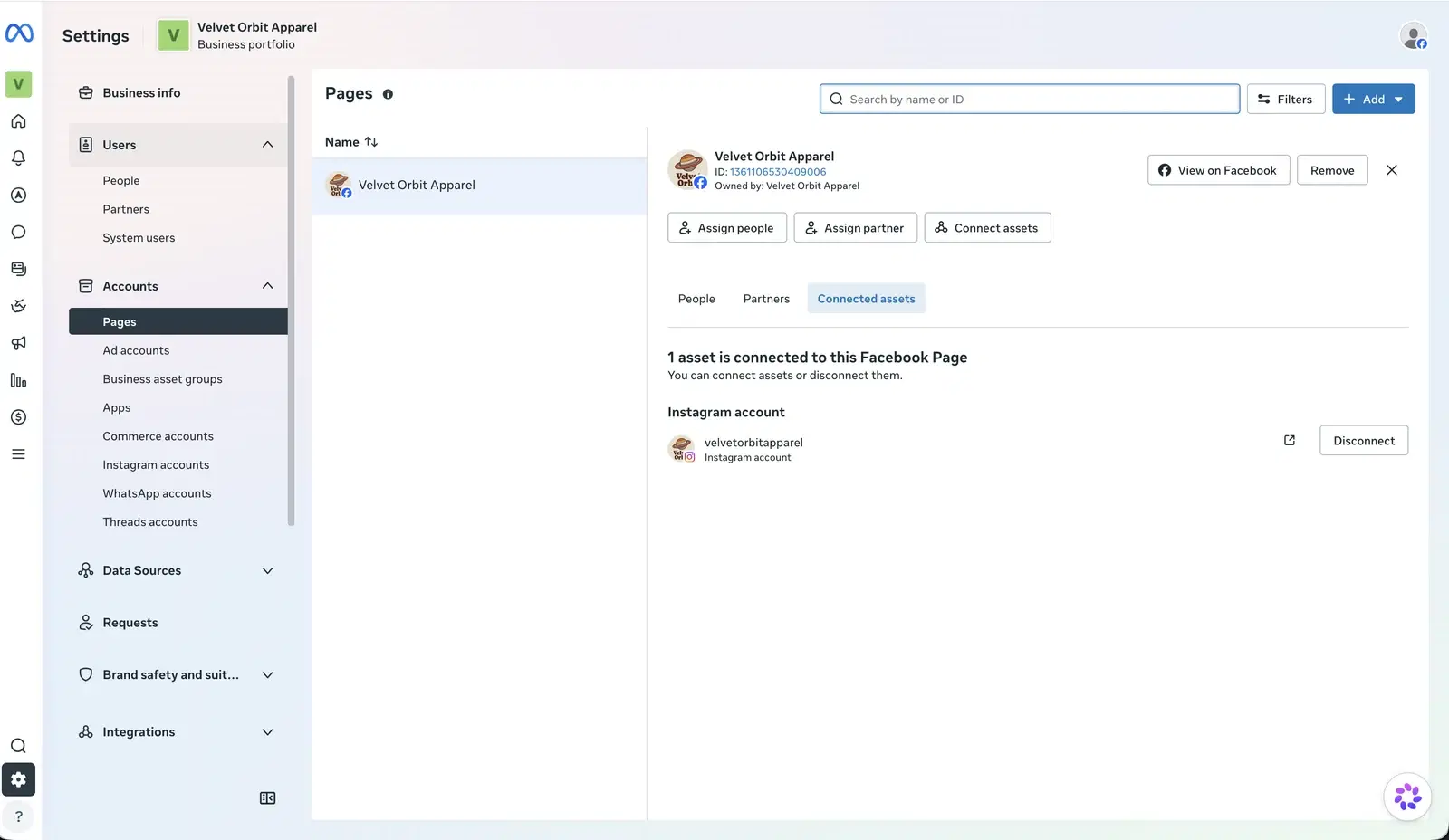
This is the step people miss. If the two aren't linked, the connection will look successful in Vaybel but publishing will fail. The easiest place to do it, and to check it, is Meta Business Settings:
- Open business.facebook.com/settings and pick your Business portfolio.
- Go to
Accounts -> Pages, select your Page, and open the Connected assets tab. - If your Instagram account isn't listed, click Connect assets and choose it.
The same tab is where you confirm the link later: the Instagram account should appear under the Page before you start the Vaybel connection.
You can also link from the Instagram app under Edit profile -> Page, or from the Facebook Page under Settings -> Linked accounts; the result is the same.
Where To Start
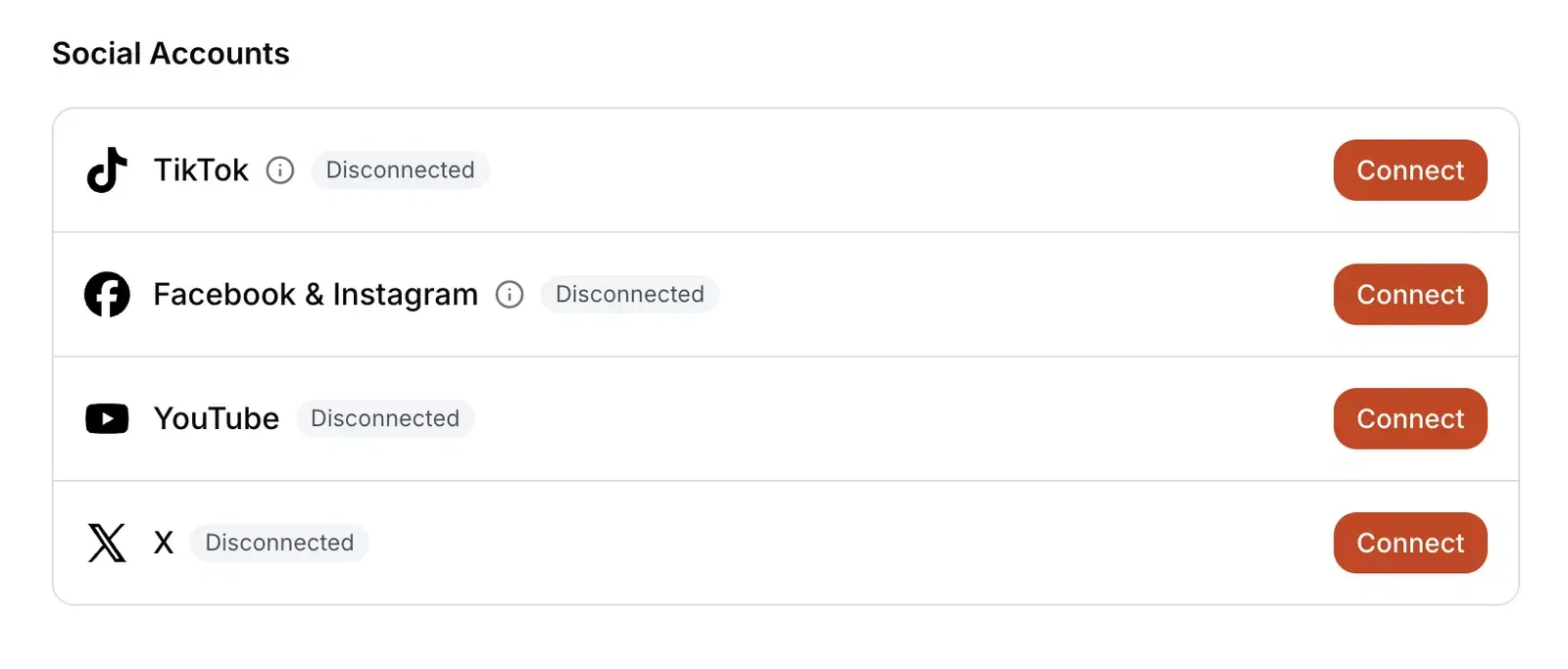
Open Dashboard -> Settings -> Integrations, find Facebook & Instagram under Social Accounts, and click Connect. Make sure you are in the workspace that should own this Instagram account; each workspace connects one account.
Walk Through Meta's Dialog
Log in to Facebook
Use the personal profile that manages your Page. If you're already logged in, Meta skips straight to the next step.
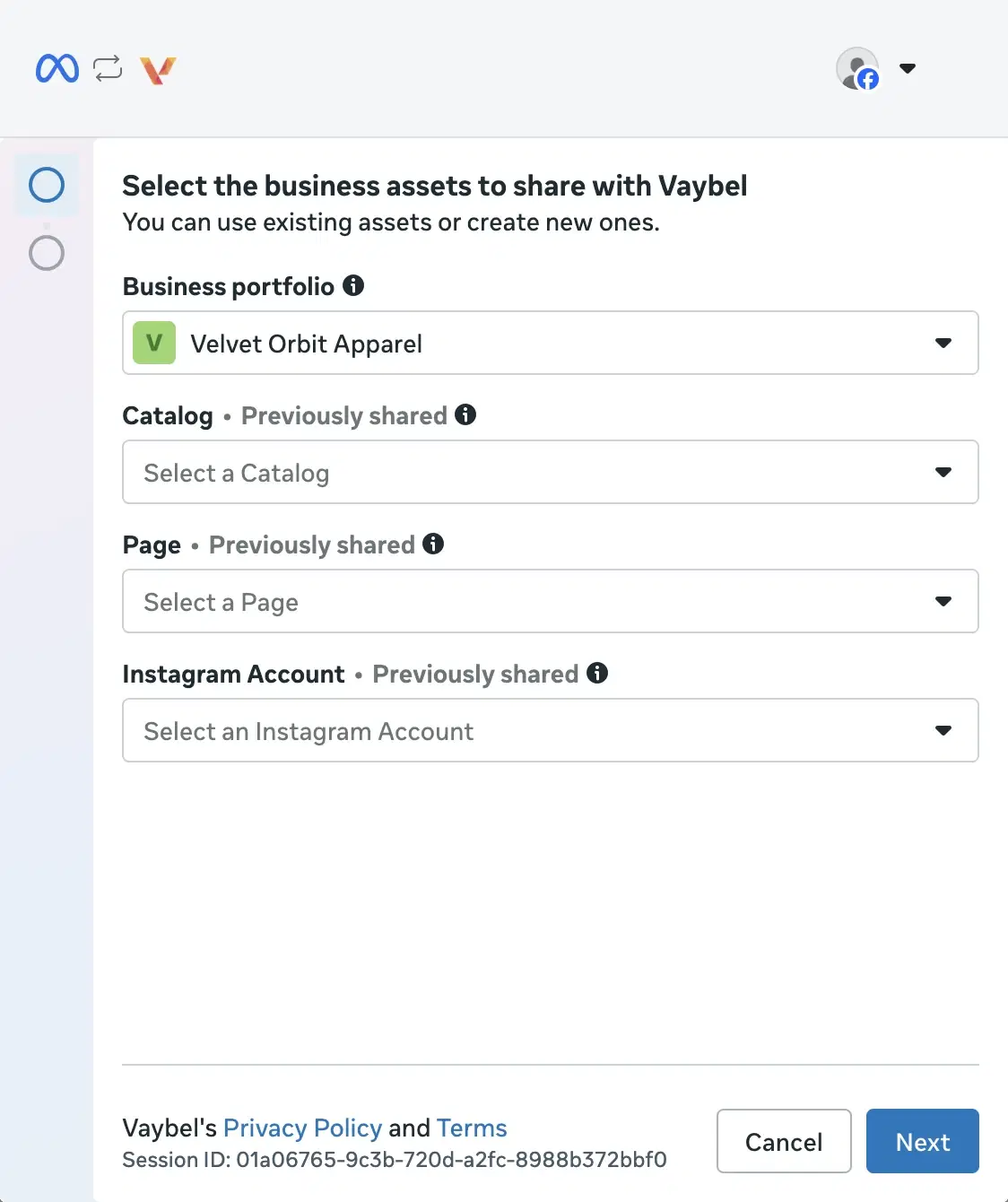
Choose a Business portfolio
A Business portfolio is Meta's container for your Page and Instagram account. Pick the portfolio that owns them. If you've never created one, choose Create a Business portfolio and fill in your business name, email, country, and website. Your store's URL is fine as the website.
Select your Page and Instagram account
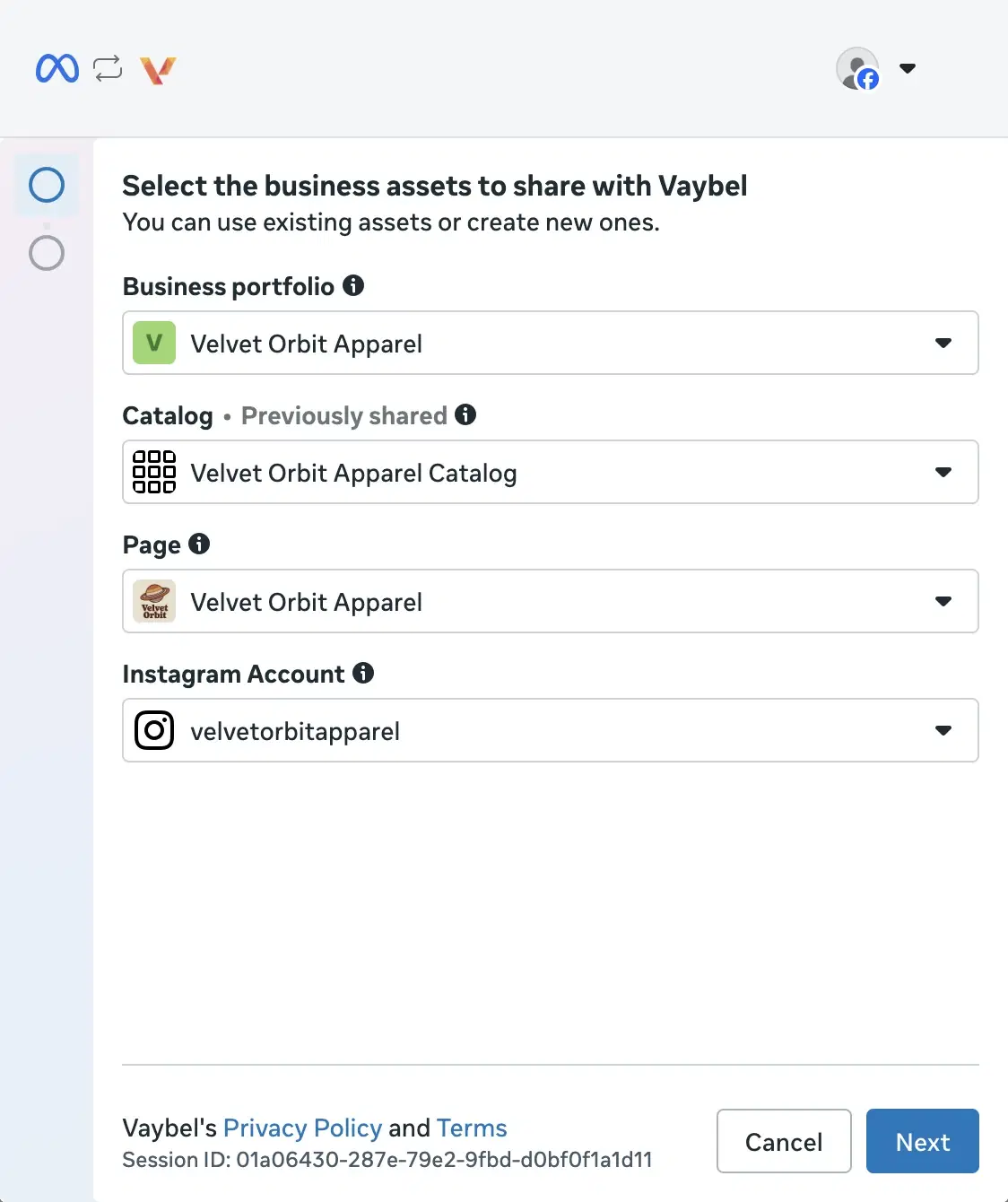
Both are required. Pick the Page and the Instagram account that are linked to each other. If the Instagram dropdown is empty, the account isn't linked to any Page yet, or it's still a personal account; go back to Before You Start.
Catalog (only if you have an Instagram Shop)
If your Instagram account has an approved shop, Meta also offers its product catalog here. Selecting it lets Vaybel tag products in your posts; see Tag Products In Posts for what that needs. If you don't see a catalog, you don't have an approved shop yet. Skip it. Nothing else depends on it.
Review and confirm
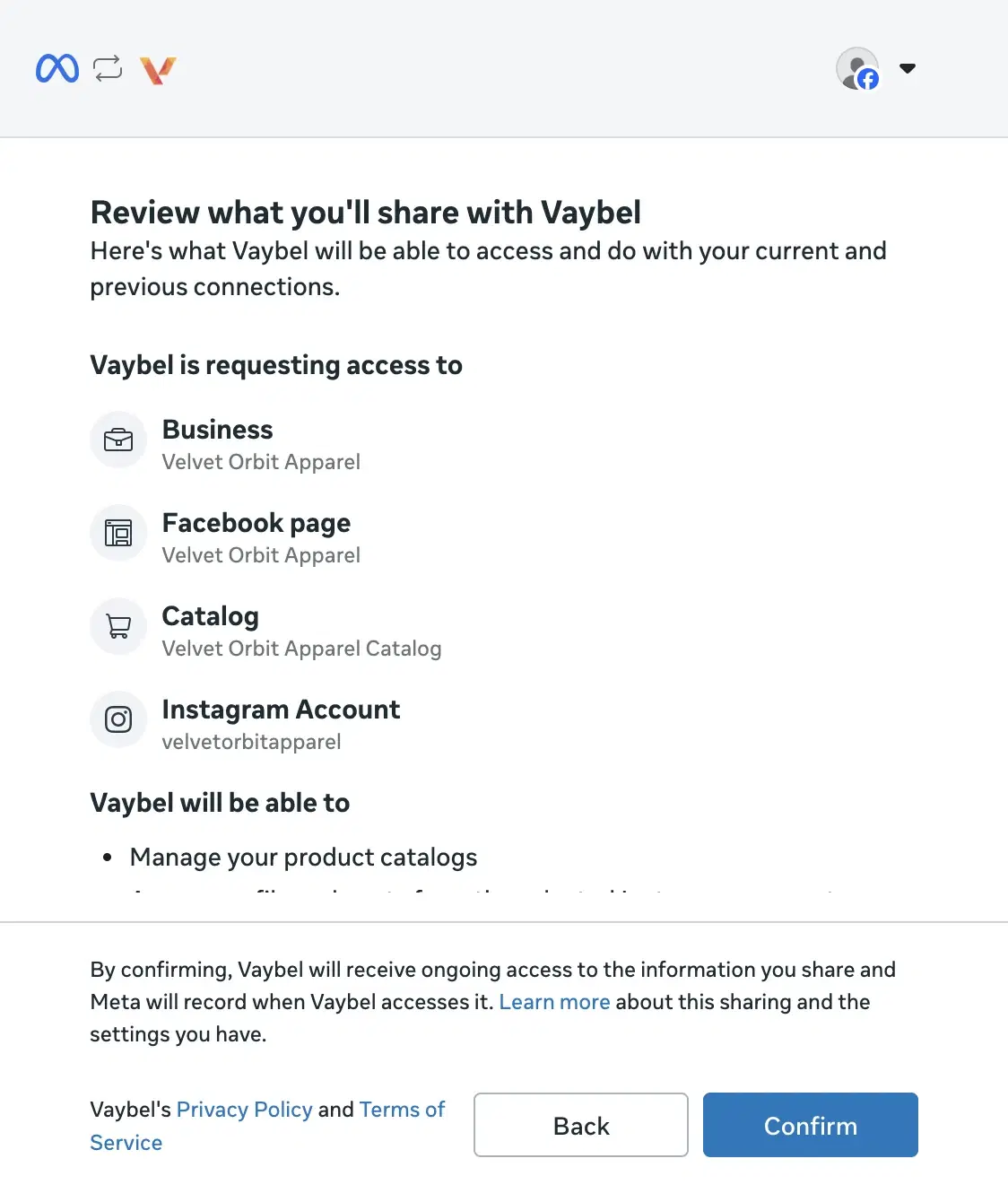
Meta lists exactly what Vaybel is asking for: publish content to your Instagram account, read its engagement, and access the catalog you shared (if any). Click Confirm to finish and return to Vaybel.
Verify The Connection
Back in Vaybel, the Facebook & Instagram row should read Active with your Instagram handle underneath, for example @yourbrand • Connected • today's date.
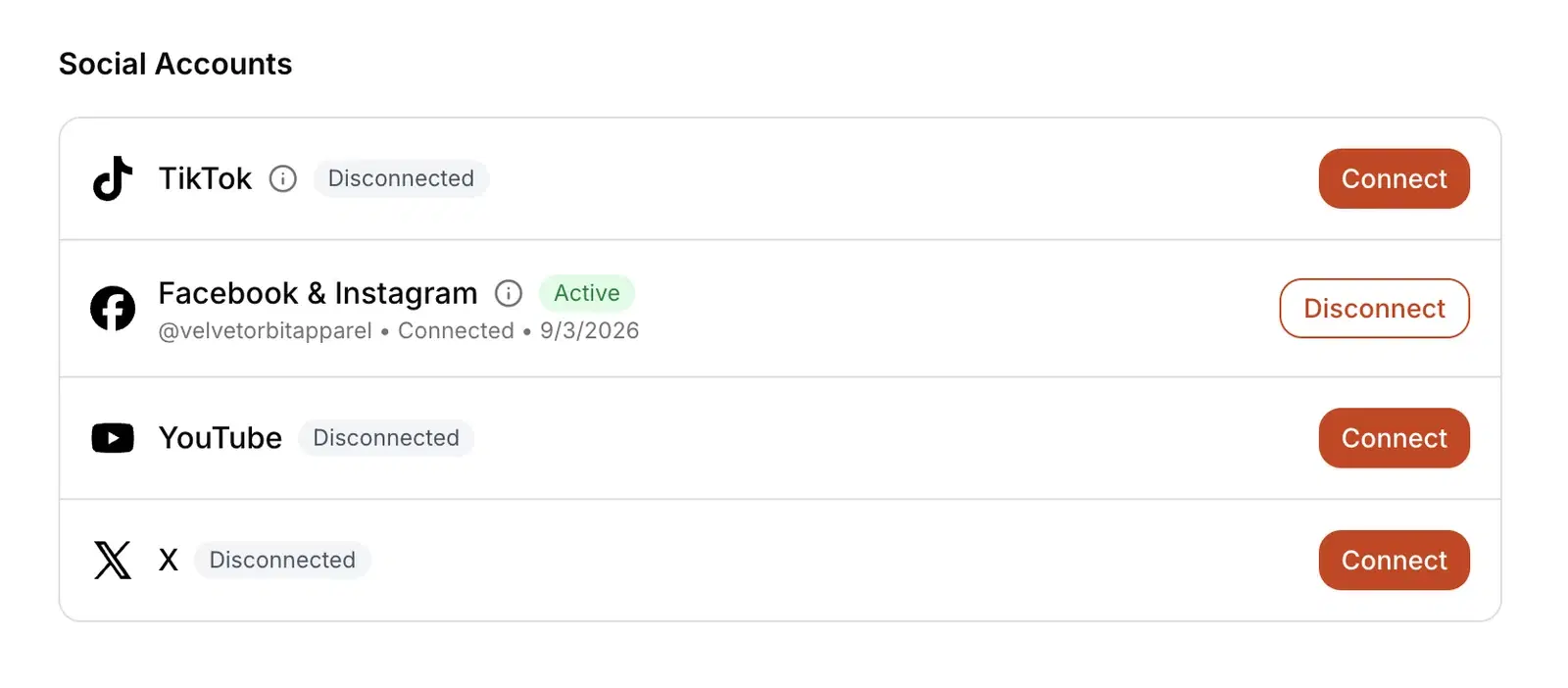
If the row says Active but no handle appears, the Instagram account wasn't linked to the Page when you connected. Link them, then disconnect and connect again. Meta doesn't re-check the link after the fact, so a fresh connection is required.
What Vaybel Does With This Access
- Publishes only when you click Publish. Vaybel never posts on its own.
- Reads engagement (views, likes, comments) for posts published through Vaybel and shows them on your Posts page.
- Looks up a product in your catalog only when you tag it in a post, and only in the catalog you shared. Vaybel never adds, edits, or removes catalog items; your Shopify store's Facebook & Instagram channel owns them.
- Disconnect anytime from
Settings -> Integrations. You can also remove Vaybel from Facebook underSettings -> Business integrations; either way Vaybel deletes the access it held.
Tag Products In Posts
Tagging is optional and only works with a Shopify store. A tag opens your store's product page, where your Shopify pixel records the visit and the sale. Etsy and TikTok Shop listings can't be tagged: Meta only approves shops on a domain the business owns, and since 2025 every tag sends shoppers to the merchant's own site.
You need all of these:
- Your Shopify store connected to Vaybel, under
Settings -> Integrations. - Shopify's Facebook & Instagram sales channel installed in your Shopify admin and connected to the same Business portfolio as your Instagram account, with the catalog synced and your Instagram Shop approved. Shopify fills the catalog and keeps it current; Vaybel never writes to it.
- The listing published to Shopify from Vaybel and available on that channel. Shopify syncs it to Meta within minutes; it shows up in Commerce Manager under Catalog when it's there.
- The catalog shared with Vaybel in Step 4 of the connection above.
When you publish with Tag product on Instagram turned on, Vaybel searches your catalog for the Shopify product behind the listing and tags it if Meta has approved the item. If the product isn't in the catalog yet, or Meta is still reviewing it, the post goes out without the tag. When you insist on the tag, Vaybel stops instead and tells you why, so you can wait for the sync or turn the tag off.
Change Your Selection Later
Meta remembers what you granted. To switch Pages, add your catalog after your shop is approved, or fix a wrong selection: disconnect in Vaybel, click Connect again, and on Meta's review screen choose Edit previous settings. That reopens the asset picker instead of reusing your last choices.
Watch For
- an Instagram account that is still personal, not professional
- an Instagram account that isn't linked to the Page you selected
- choosing a Page owned by a different Business portfolio than the one you picked
- being logged into a Facebook profile that doesn't manage the Page
- expecting a catalog to appear before the Instagram Shop is approved
- tagging a product that Shopify hasn't synced to the catalog yet, or that Meta hasn't approved